# Lab Workflow

<span>In this chapter </span><span>you can find the general workflow and steps to follow when setting up and running experiments in the Brain &amp; Behaviour Lab. Please go over the steps one by one when setting up a new study.</span>

# Pre Experiment

---

#### **Ethics in Research**

1. Check the privacy rules on [this <svg aria-hidden="true" class="" height="15" viewbox="0 0 100 100" width="15" xmlns="http://www.w3.org/2000/svg"><path d="M18.8,85.1h56l0,0c2.2,0,4-1.8,4-4v-32h-8v28h-48v-48h28v-8h-32l0,0c-2.2,0-4,1.8-4,4v56C14.8,83.3,16.6,85.1,18.8,85.1z" fill="currentColor"></path><polygon fill="currentColor" points="45.7,48.7 51.3,54.3 77.2,28.5 77.2,37.2 85.2,37.2 85.2,14.9 62.8,14.9 62.8,22.9 71.5,22.9"></polygon></svg>](https://vu.nl/en/employee/research-data-management-fbms/privacy-legal-and-security-concerns-fgb) website.
2. You should submit a data management plan to the Research and Policy Support (REPS) Team (<research.data.fgb@vu.nl>). You can find more information on [this <svg aria-hidden="true" class="" height="15" viewbox="0 0 100 100" width="15" xmlns="http://www.w3.org/2000/svg"><path d="M18.8,85.1h56l0,0c2.2,0,4-1.8,4-4v-32h-8v28h-48v-48h28v-8h-32l0,0c-2.2,0-4,1.8-4,4v56C14.8,83.3,16.6,85.1,18.8,85.1z" fill="currentColor"></path><polygon fill="currentColor" points="45.7,48.7 51.3,54.3 77.2,28.5 77.2,37.2 85.2,37.2 85.2,14.9 62.8,14.9 62.8,22.9 71.5,22.9"></polygon></svg>](https://vu.nl/en/employee/research-data-management-fbms) website.
3. Research has to comply with the code of ethics for research at the FGB (NETHICS), which can be found on [this <svg aria-hidden="true" class="" height="15" viewbox="0 0 100 100" width="15" xmlns="http://www.w3.org/2000/svg"><path d="M18.8,85.1h56l0,0c2.2,0,4-1.8,4-4v-32h-8v28h-48v-48h28v-8h-32l0,0c-2.2,0-4,1.8-4,4v56C14.8,83.3,16.6,85.1,18.8,85.1z" fill="currentColor"></path><polygon fill="currentColor" points="45.7,48.7 51.3,54.3 77.2,28.5 77.2,37.2 85.2,37.2 85.2,14.9 62.8,14.9 62.8,22.9 71.5,22.9"></polygon></svg>](https://vu.nl/en/employee/behavioural-and-movement-sciences-getting-started/the-scientific-and-ethical-review-board-vcwe) website.
4. With regards to ethical approval, an umbrella ethics application for standard cognitive experiments in the lab - including online experimenting and VR - has been [approved <svg aria-hidden="true" class="" height="15" viewbox="0 0 100 100" width="15" xmlns="http://www.w3.org/2000/svg"><path d="M18.8,85.1h56l0,0c2.2,0,4-1.8,4-4v-32h-8v28h-48v-48h28v-8h-32l0,0c-2.2,0-4,1.8-4,4v56C14.8,83.3,16.6,85.1,18.8,85.1z" fill="currentColor"></path><polygon fill="currentColor" points="45.7,48.7 51.3,54.3 77.2,28.5 77.2,37.2 85.2,37.2 85.2,14.9 62.8,14.9 62.8,22.9 71.5,22.9"></polygon></svg>](https://vunl.sharepoint.com/:b:/s/FGB-BV-TO3BBlabs/EYnCGng9hkBLryylRnMOBZQBP2Lx-OC3v70tkwFeXtvkbQ?e=6q76jO) by the Ethical Review Board (VCWE) in September 2021 and is valid for 5 years. If you are a researcher in the section Cognitive Psychology and your research does not deviate from [this protocol <svg aria-hidden="true" class="" height="15" viewbox="0 0 100 100" width="15" xmlns="http://www.w3.org/2000/svg"><path d="M18.8,85.1h56l0,0c2.2,0,4-1.8,4-4v-32h-8v28h-48v-48h28v-8h-32l0,0c-2.2,0-4,1.8-4,4v56C14.8,83.3,16.6,85.1,18.8,85.1z" fill="currentColor"></path><polygon fill="currentColor" points="45.7,48.7 51.3,54.3 77.2,28.5 77.2,37.2 85.2,37.2 85.2,14.9 62.8,14.9 62.8,22.9 71.5,22.9"></polygon></svg>](https://vunl.sharepoint.com/:b:/s/FGB-BV-TO3BBlabs/EVgr3sTVJ8FFmjtZkyTBsykB4GIWt5QF_fv9RmgJ6WLqlA?e=0kZoRh), you do not need to request separate approval. In this case, you can use the approved [consent form <svg aria-hidden="true" class="" height="15" viewbox="0 0 100 100" width="15" xmlns="http://www.w3.org/2000/svg"><path d="M18.8,85.1h56l0,0c2.2,0,4-1.8,4-4v-32h-8v28h-48v-48h28v-8h-32l0,0c-2.2,0-4,1.8-4,4v56C14.8,83.3,16.6,85.1,18.8,85.1z" fill="currentColor"></path><polygon fill="currentColor" points="45.7,48.7 51.3,54.3 77.2,28.5 77.2,37.2 85.2,37.2 85.2,14.9 62.8,14.9 62.8,22.9 71.5,22.9"></polygon></svg>](https://vunl.sharepoint.com/:w:/s/FGB-BV-TO3BBlabs/Ea-L_iYdm-tPvsJm68ohHn8Bv_GSOXsmjjVVkKDLN4UhxQ?e=rDjHqA) and [information letter <svg aria-hidden="true" class="" height="15" viewbox="0 0 100 100" width="15" xmlns="http://www.w3.org/2000/svg"><path d="M18.8,85.1h56l0,0c2.2,0,4-1.8,4-4v-32h-8v28h-48v-48h28v-8h-32l0,0c-2.2,0-4,1.8-4,4v56C14.8,83.3,16.6,85.1,18.8,85.1z" fill="currentColor"></path><polygon fill="currentColor" points="45.7,48.7 51.3,54.3 77.2,28.5 77.2,37.2 85.2,37.2 85.2,14.9 62.8,14.9 62.8,22.9 71.5,22.9"></polygon></svg>](https://vunl.sharepoint.com/:w:/s/FGB-BV-TO3BBlabs/EQ9opHzUVmtNhEWVV9TQansBqLrSMSiqRgh-L841BGdJ0Q?e=Mq0Ww1) templates and add study-specific information. With regards to the information letter, you can use [this document <svg aria-hidden="true" class="" height="15" viewbox="0 0 100 100" width="15" xmlns="http://www.w3.org/2000/svg"><path d="M18.8,85.1h56l0,0c2.2,0,4-1.8,4-4v-32h-8v28h-48v-48h28v-8h-32l0,0c-2.2,0-4,1.8-4,4v56C14.8,83.3,16.6,85.1,18.8,85.1z" fill="currentColor"></path><polygon fill="currentColor" points="45.7,48.7 51.3,54.3 77.2,28.5 77.2,37.2 85.2,37.2 85.2,14.9 62.8,14.9 62.8,22.9 71.5,22.9"></polygon></svg>](https://vunl.sharepoint.com/:b:/s/FGB-BV-TO3BBlabs/ETu9q5jQPB9Oruv4XEfF304BY3gmvoIBh7iv8xNWyUWRZw?e=un3GwW) to add method-specific text.
5. If you are not a researcher working in the section Cognitive Psychology and/or for any deviations from the standard protocol, you can apply for an amendment at the VCWE. You then upload this protocol and explain what you will add/do differently. In case your research deviates hugely you need to get your own research protocol approved by VCWE. To prepare a new ethics application, you can find participant-information-letter-template and informed-consent-templates and a GDPR checklist on [this website <svg aria-hidden="true" class="" height="15" viewbox="0 0 100 100" width="15" xmlns="http://www.w3.org/2000/svg"><path d="M18.8,85.1h56l0,0c2.2,0,4-1.8,4-4v-32h-8v28h-48v-48h28v-8h-32l0,0c-2.2,0-4,1.8-4,4v56C14.8,83.3,16.6,85.1,18.8,85.1z" fill="currentColor"></path><polygon fill="currentColor" points="45.7,48.7 51.3,54.3 77.2,28.5 77.2,37.2 85.2,37.2 85.2,14.9 62.8,14.9 62.8,22.9 71.5,22.9"></polygon></svg>](https://vu.nl/en/employee/behavioural-and-movement-sciences-getting-started/the-scientific-and-ethical-review-board-vcwe).


#### **Request a Project Account**

To run experiments in the lab and use the lab computers, you should request a project account. This can be requested by sending an email to the Lab Coordinator(<c.cengiz@vu.nl>) or to <bblabs.fgb@vu.nl>. Each new project requires a new account. This means that if you want to start a different project, **<span style="color: rgb(224, 62, 45);">you need to request a new project account</span>**.<span style="color: rgb(0, 0, 0);"> </span>This project account can be used by multiple people working on the same project. With this research account you can log into every computer at the VU Brain &amp; Behaviour lab. You can also log into different PCs at the same time. The steps for requesting an account:

1. Send an e-mail to the Lab Coordinator or <bblabs.fgb@vu.nl> that you would like to have a new project account.
2. You will receive a response mail with a link to a form for filling out information.
3. Once you filled in the form, send a response that you have filled the form in **along with a password of minimum 7 characters**.
4. You will receive a confirmation mail with your username/Short Project Name and your password. You can now use it to log into the PCs.

Once you have your account, check out the **Lab Help** folder that everyone has on their desktop by default. Most of the software necessary is also present by default.

<p class="callout info">If you need anything in particular that is not on there already, contact the Lab Coordinator or anyone else from the Lab Team. Do this in a timely manner! </p>

For more detailed information about (default) project accounts, check the page on [Project Accounts](https://bblabs.fgb.vu.nl/books/brain-behaviour-lab/page/project-accounts "Project Accounts").


#### **Lab Access**

If you do not have access to the lab on your VU employee card, then you can request this at the TO3 Helpdesk. The room number is B-659 (MF-builing, sixth floor). Opening hours of the TO3 Helpdesk are Monday-Thursday from 09:00 to 17:00 and on Friday from 09:00 to 16:00. Before you go there, discuss your access request with the [Lab Coordinator](https://bblabs.fgb.vu.nl/books/brain-behaviour-lab/page/people "People") since they need to approve it. Students cannot have lab access on their cards and need to request keycards for each booking (or the supervisor needs to request it for them via Labservant).

If at any time your access card is not working, try updating it by holding it against the lock at the front entrance of the lab. This may fix your problem. If the problem persists, visit the TO3 Helpdesk.

In the case of (student) research assistants, it is possible to request an employee access card through [this <svg aria-hidden="true" class="" height="15" viewbox="0 0 100 100" width="15" xmlns="http://www.w3.org/2000/svg"><path d="M18.8,85.1h56l0,0c2.2,0,4-1.8,4-4v-32h-8v28h-48v-48h28v-8h-32l0,0c-2.2,0-4,1.8-4,4v56C14.8,83.3,16.6,85.1,18.8,85.1z" fill="currentColor"></path><polygon fill="currentColor" points="45.7,48.7 51.3,54.3 77.2,28.5 77.2,37.2 85.2,37.2 85.2,14.9 62.8,14.9 62.8,22.9 71.5,22.9"></polygon></svg>](https://services.vu.nl/esc?id=sc_cat_item&sys_id=709e054c47d35d50bfa46d72e36d43d0) link.

##### **Access Outside Opening Hours** 

You will need to request additional access on your card and inform VU Security about when you would like to get access to the lab outside of the opening hours. The steps for requesting this access can be found in our [Guideline <svg aria-hidden="true" class="" height="15" viewbox="0 0 100 100" width="15" xmlns="http://www.w3.org/2000/svg"><path d="M18.8,85.1h56l0,0c2.2,0,4-1.8,4-4v-32h-8v28h-48v-48h28v-8h-32l0,0c-2.2,0-4,1.8-4,4v56C14.8,83.3,16.6,85.1,18.8,85.1z" fill="currentColor"></path><polygon fill="currentColor" points="45.7,48.7 51.3,54.3 77.2,28.5 77.2,37.2 85.2,37.2 85.2,14.9 62.8,14.9 62.8,22.9 71.5,22.9"></polygon></svg>](https://vunl.sharepoint.com/:b:/s/FGB-BV-TO3BBlabs/EZeDfI0gDyVBjdYdv9j59sYB4Nsv3St9X1k6SEjXtqwJnA?e=aO5LSB).

#### **Recruiting Participants**

Participants can be recruited via walk-ins or via the online [Sona system <svg aria-hidden="true" class="" height="15" viewbox="0 0 100 100" width="15" xmlns="http://www.w3.org/2000/svg"><path d="M18.8,85.1h56l0,0c2.2,0,4-1.8,4-4v-32h-8v28h-48v-48h28v-8h-32l0,0c-2.2,0-4,1.8-4,4v56C14.8,83.3,16.6,85.1,18.8,85.1z" fill="currentColor"></path><polygon fill="currentColor" points="45.7,48.7 51.3,54.3 77.2,28.5 77.2,37.2 85.2,37.2 85.2,14.9 62.8,14.9 62.8,22.9 71.5,22.9"></polygon></svg>](https://vu.sona-systems.com/). You can also place brochures of your experiment in the waiting room of the Brain &amp; Behaviour Lab (A-431) or on bulletin boards around VU Campus. Additionally, we also put links to studies in the [Ongoing Studies](https://bblabs.fgb.vu.nl/books/brain-behaviour-lab/page/ongoing-studies "Ongoing Studies") section of this website. Previously, there was the option to use Telegram for recruiting participants; this option has been discontinued!

##### **Sona** 

If you do not have a Sona-account yet, please contact <subjectpool.fgb@vu.nl>. After receiving a Sona-account, you can create a study on Sona with the available time slots and have people register for your research. Participants can apply for credits (1.5 per minute in the lab, or 1 per minute online) or for money (10 euros per hour). For more detailed information on participant handling please see [the following manual <svg aria-hidden="true" class="" height="15" viewbox="0 0 100 100" width="15" xmlns="http://www.w3.org/2000/svg"><path d="M18.8,85.1h56l0,0c2.2,0,4-1.8,4-4v-32h-8v28h-48v-48h28v-8h-32l0,0c-2.2,0-4,1.8-4,4v56C14.8,83.3,16.6,85.1,18.8,85.1z" fill="currentColor"></path><polygon fill="currentColor" points="45.7,48.7 51.3,54.3 77.2,28.5 77.2,37.2 85.2,37.2 85.2,14.9 62.8,14.9 62.8,22.9 71.5,22.9"></polygon></svg>](https://vunl.sharepoint.com/:b:/s/FGB-BV-TO3BBlabs/EUYLZtkk0y5Il3Kwne6q7NgBnoooIThKGaxem3qqIHOBEQ?e=44vvxq) (2024/2025.)

#### **Reserving Lab Spaces**

For making bookings and reservations of lab spaces, we make use of [Labservant <svg aria-hidden="true" class="" height="15" viewbox="0 0 100 100" width="15" xmlns="http://www.w3.org/2000/svg"><path d="M18.8,85.1h56l0,0c2.2,0,4-1.8,4-4v-32h-8v28h-48v-48h28v-8h-32l0,0c-2.2,0-4,1.8-4,4v56C14.8,83.3,16.6,85.1,18.8,85.1z" fill="currentColor"></path><polygon fill="currentColor" points="45.7,48.7 51.3,54.3 77.2,28.5 77.2,37.2 85.2,37.2 85.2,14.9 62.8,14.9 62.8,22.9 71.5,22.9"></polygon></svg>](https://labservant.vu.nl/equipment/lending-desk/landing-page). Anyone from the FGB Department can make use of Labservant. It might be somewhat difficult to navigate so we have step-by-steps instructions on how to make a booking:

<p class="callout success">Check [this document <svg aria-hidden="true" class="" height="15" viewbox="0 0 100 100" width="15" xmlns="http://www.w3.org/2000/svg"><path d="M18.8,85.1h56l0,0c2.2,0,4-1.8,4-4v-32h-8v28h-48v-48h28v-8h-32l0,0c-2.2,0-4,1.8-4,4v56C14.8,83.3,16.6,85.1,18.8,85.1z" fill="currentColor"></path><polygon fill="currentColor" points="45.7,48.7 51.3,54.3 77.2,28.5 77.2,37.2 85.2,37.2 85.2,14.9 62.8,14.9 62.8,22.9 71.5,22.9"></polygon></svg>](https://vunl.sharepoint.com/:b:/s/FGB-BV-TO3BBlabs/Ecvh0velWtFMvDR93tPpnucBZG2KqEwOKbq7UOOg84e0KA?e=N4lPJ8) for the most up-to-date booking instructions and guidelines. </p>

1. Please open your browser, navigate to [Labservant <svg aria-hidden="true" class="" height="15" viewbox="0 0 100 100" width="15" xmlns="http://www.w3.org/2000/svg"><path d="M18.8,85.1h56l0,0c2.2,0,4-1.8,4-4v-32h-8v28h-48v-48h28v-8h-32l0,0c-2.2,0-4,1.8-4,4v56C14.8,83.3,16.6,85.1,18.8,85.1z" fill="currentColor"></path><polygon fill="currentColor" points="45.7,48.7 51.3,54.3 77.2,28.5 77.2,37.2 85.2,37.2 85.2,14.9 62.8,14.9 62.8,22.9 71.5,22.9"></polygon></svg>](https://labservant.vu.nl/equipment/lending-desk/landing-page), and log in using your VU-ID credentials. Navigate to Lending Desk.

<div class="ImageZoom with-border" data-v-f17c6258="" id="bkmrk--1"></div>2. In the Lending Desk, click on ‘**+Create new booking**’ in the right lower corner.  
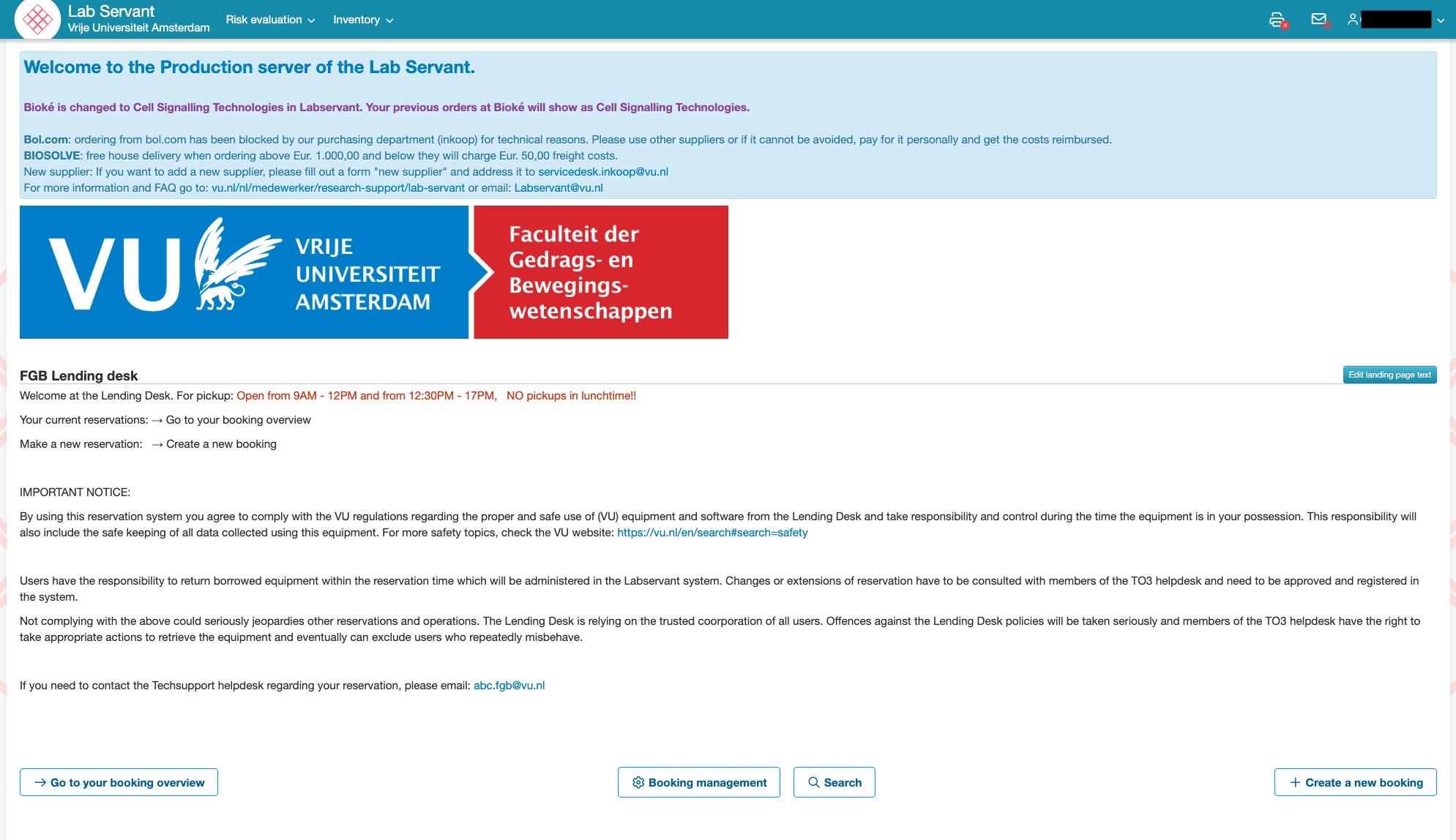
     ![Labservant1.png](https://bblabs.fgb.vu.nl/uploads/images/gallery/2026-06/labservant1.png)

<div class="ImageZoom with-border" data-v-f17c6258="" id="bkmrk--2"></div>3. Search for the room you need: 
    - If you write '**Brain**' as a search term, you will see all the **keycards AND rooms** of the Lab.
    - You can also just look up a specific room if you know which one you need.
    - Multipurpose/VR labs can be found under the search term: 'Multicubicle'
    - EEG labs can be found under the search term: 'B447'
    - Eyelink labs can be found under the search term: 'B449'  
        \*note that you can make use of both EEG/Eyelink in the rooms of B447 &amp; B449

<div class="ImageZoom with-border" data-v-f17c6258="" id="bkmrk--3">![Labservant2.png](https://bblabs.fgb.vu.nl/uploads/images/gallery/2026-06/labservant2.png)</div><div class="ImageZoom with-border" data-v-f17c6258="" id="bkmrk--4"></div>All rooms start with "EQ018... MF-...." (e.g., "EQ018159 MF-B447A EEG + Eyelink") and all keycards starts with "EQ017... Keycard MF-...." (e.g., "EQ017671 Keycard MF-B447 EEG-01").

<p class="callout warning">Any room/keycard that does NOT start with "EQ01...." is old and invalid. Please pay attention to not select any of these!</p>

<div class="ImageZoom with-border" data-v-f17c6258="" id="bkmrk--5"></div>4. Select the room, adjust the date and time and provide information of your booking. Make sure to select and fill out both the start and end times separately. In order to see your booking and availabilities you must move to your desired date manually using the arrows in black.
5. Never make a booking spanning multiple days. If you want to make a booking for the same space and time period for consecutive days, then select "Recurrence: daily" under "Recurrence" period. You can also do this weekly, however the booking slots cannot differ and, generally, you may not make bookings of more than 2 weeks in advance unless otherwise discussed with the Lab Coordinator.
6. Press submit &gt; you will receive a mail if your booking has been approved or declined. If declined, you can read in the mail why it has been declined.

<div class="ImageZoom with-border" data-v-f17c6258="" id="bkmrk--6"></div><p class="callout warning">When booking a lab space, check whether you are booking the space/room and not (just) the Keycard for the room. If you only select the Keycard, the room will NOT be reserved!</p>

##### **Cancellation of Booking**

Go to the home page &gt; click on the shortcut to the lending desk &gt; click on 'go to your booking overview' &gt; click on the booking you want to delete (the text becomes bold, the booking is selected) &gt; click on the 'edit' button in the bottom right corner &gt; click on the 'delete' button in the bottom right corner.

<div class="ImageZoom with-border" data-v-f17c6258="" id="bkmrk--8"></div>

# Running Experiment

---

#### **Participant Handling**

Before the start of your experiment, you should inform your participants on the goals, terms and conditions of your research with an information letter ([ENG <svg aria-hidden="true" class="" height="15" viewbox="0 0 100 100" width="15" xmlns="http://www.w3.org/2000/svg"><path d="M18.8,85.1h56l0,0c2.2,0,4-1.8,4-4v-32h-8v28h-48v-48h28v-8h-32l0,0c-2.2,0-4,1.8-4,4v56C14.8,83.3,16.6,85.1,18.8,85.1z" fill="currentColor"></path><polygon fill="currentColor" points="45.7,48.7 51.3,54.3 77.2,28.5 77.2,37.2 85.2,37.2 85.2,14.9 62.8,14.9 62.8,22.9 71.5,22.9"></polygon></svg>](https://drive.google.com/file/d/1iD3GcnuXV3YTcEDOhLivQBlYbz13G8yF/view)/[NL <svg aria-hidden="true" class="" height="15" viewbox="0 0 100 100" width="15" xmlns="http://www.w3.org/2000/svg"><path d="M18.8,85.1h56l0,0c2.2,0,4-1.8,4-4v-32h-8v28h-48v-48h28v-8h-32l0,0c-2.2,0-4,1.8-4,4v56C14.8,83.3,16.6,85.1,18.8,85.1z" fill="currentColor"></path><polygon fill="currentColor" points="45.7,48.7 51.3,54.3 77.2,28.5 77.2,37.2 85.2,37.2 85.2,14.9 62.8,14.9 62.8,22.9 71.5,22.9"></polygon></svg>](https://drive.google.com/file/d/1LaBxx_vjEHgBxxJEHt-29aXCjZd9cwXo/view)). After this they should agree with participating in the research by signing the informed consent ([ENG <svg aria-hidden="true" class="" height="15" viewbox="0 0 100 100" width="15" xmlns="http://www.w3.org/2000/svg"><path d="M18.8,85.1h56l0,0c2.2,0,4-1.8,4-4v-32h-8v28h-48v-48h28v-8h-32l0,0c-2.2,0-4,1.8-4,4v56C14.8,83.3,16.6,85.1,18.8,85.1z" fill="currentColor"></path><polygon fill="currentColor" points="45.7,48.7 51.3,54.3 77.2,28.5 77.2,37.2 85.2,37.2 85.2,14.9 62.8,14.9 62.8,22.9 71.5,22.9"></polygon></svg>](https://drive.google.com/file/d/1ipxjLIJlHjZSnhsgF7igQJr96e9Wmkli/view)/[NL <svg aria-hidden="true" class="" height="15" viewbox="0 0 100 100" width="15" xmlns="http://www.w3.org/2000/svg"><path d="M18.8,85.1h56l0,0c2.2,0,4-1.8,4-4v-32h-8v28h-48v-48h28v-8h-32l0,0c-2.2,0-4,1.8-4,4v56C14.8,83.3,16.6,85.1,18.8,85.1z" fill="currentColor"></path><polygon fill="currentColor" points="45.7,48.7 51.3,54.3 77.2,28.5 77.2,37.2 85.2,37.2 85.2,14.9 62.8,14.9 62.8,22.9 71.5,22.9"></polygon></svg>](https://drive.google.com/file/d/1vk5ehkA2NZj4c3Sz5yUk00icxGnkKmHN/view)).

#### **Overview Data Flow**

For a general overview of the data flow when running an experiment see the following schematic. The next few paragraphs of this section will elaborate on the data flow.

#### **Transfer Experiment Files &gt; Project Account**

In preparation of running your experiment, you have to transfer all needed experiment files to your research account beforehand.

##### **For EEG and Eye-tracking Experiments**

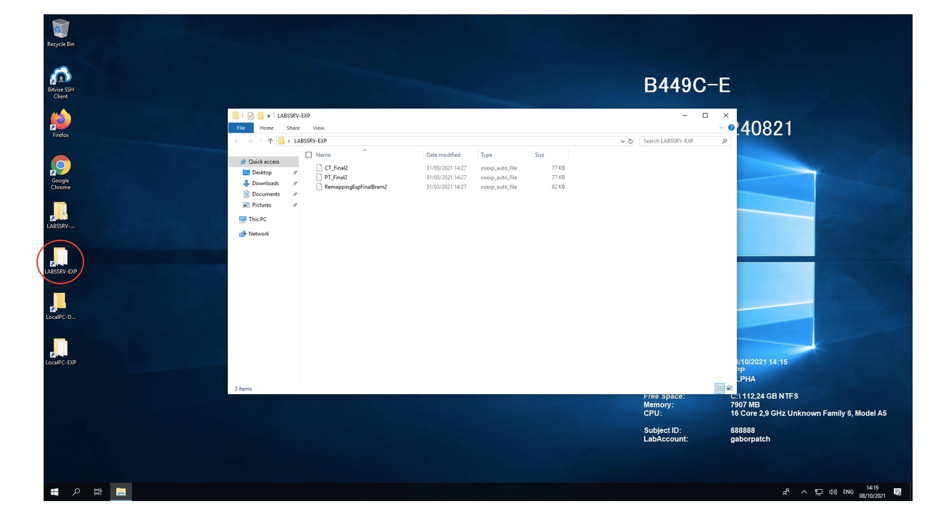
First, log into your research account (on any lab computer). Put all files that are needed for your experiment in the `EXP` folder on the server, found at `\\labssrv1\labs\[Projectaccountname]\EXP`.

[![image.png](https://bblabs.fgb.vu.nl/uploads/images/gallery/2026-03/scaled-1680-/image.png)](https://bblabs.fgb.vu.nl/uploads/images/gallery/2026-03/image.png)
##### **For Behavioural Experiments**

When running experiments in the behavioural cubicles, you have to create a new folder (e.g. "MyExperiment") within the `\\labssrv1\labs\[Projectaccountname]\EXP` folder. You place your experiment files in this new folder. If your project includes multiple experimental files (including images, textfiles or sound), place them together with the actual experiment inside of the "MyExperiment" folder.

Multiple separate experiments can be run sequently in the same run. For this, multiple folders are needed in `\\labssrv1\labs\[Projectaccountname]\EXP`. Folders will be automatically and sequentially opened during a session. This happens in alphabetical and numerical order. Thus, to create a specific play order you could for example use "01\_MyFirstExperiment" and "02\_MySecondExperiment" as folder names.

If you are planning on running experiments in the cubicles, please look at the [cubicle manual ](https://bblabs.fgb.vu.nl/books/brain-behaviour-lab/chapter/behavioural-cubicles "Behavioural Cubicles")for more detailed information about correctly setting up your project account and data management.

#### **Starting Your Experiment**

##### **For EEG and Eye-tracking Experiments**

Turn on all needed computers (Stimulus/EyeLink/BioSemi). Log into the stimulus computer with your research account. Every time you log in, all files from the `\\labssrv1\labs\[Projectaccountname]\EXP` folder will be copied to a local `EXP` folder. When running your experiment, it is important to use the version located in the `LocalPC-EXP` (desktop shortcut of local `EXP` folder).

<p class="callout warning">Although the contents of `\\labssrv1\labs\[Projectaccountname]\EXP` and `LocalPC-EXP` should completely match after logging in, it is strongly advised to **NOT** run your experiment from the server. Any network problems can cause your experiment to crash, this will not pose a problem when running locally.</p>

Furthermore, you should specify that your data should be stored in the `LocalPC-DATA` folder. If this is not possible, move the data there manually before logging off from the project account. When logging off, all files from the local DATA folder will be copied to the `LABSSRV1-DATA` folder on the server.

##### **For Behavioural Experiments**

See section [Behavioural Cubicles](https://bblabs.fgb.vu.nl/books/brain-behaviour-lab/chapter/behavioural-cubicles "Behavioural Cubicles").

# Post Experiment

---

#### **Participant Debriefing**

When the participant is finished with the experiment, you can optionally give them a debriefing document (see [example <svg aria-hidden="true" class="" height="15" viewbox="0 0 100 100" width="15" xmlns="http://www.w3.org/2000/svg"><path d="M18.8,85.1h56l0,0c2.2,0,4-1.8,4-4v-32h-8v28h-48v-48h28v-8h-32l0,0c-2.2,0-4,1.8-4,4v56C14.8,83.3,16.6,85.1,18.8,85.1z" fill="currentColor"></path><polygon fill="currentColor" points="45.7,48.7 51.3,54.3 77.2,28.5 77.2,37.2 85.2,37.2 85.2,14.9 62.8,14.9 62.8,22.9 71.5,22.9"></polygon></svg>](https://drive.google.com/file/d/1P_p0k9HUXGOudMLb8iOb3f4sQuj5vNDF/view)).

If needed, there is a special room available for debriefing; you can make use of A-437G. This is a bigger space to discuss the experiment. If this is already full, you can use the Lab Coordinator's office when they are not there.

#### **Data Management**

After running the experiment, you can access the data on the server via any lab pc at `\\labssrv1\labs\[Projectaccountname]\DATA`. The data will be stored in folders in the following format: date\[subjectnumber\]\[pcnumber\]\[time day\].

It is also possible to access the data from your personal computer as long as you are connected to the VU-network via the VU-VPN.

On **Windows**, type in the file explorer: `\\labssrv1.psy.vu.nl\labs\[Projectaccountname]\Data`

On a **Mac**, open Finder -&gt; Go -&gt; Connect to Server and then write: `smb://labssrv1.psy.vu.nl/labs/[Projectaccountname]/Data`

On windows, you will be prompted to login with your project credentials: `FPP\[Projectaccountname]` and `password`. The same happens on a mac, but you can leave out the `FPP\` and just enter the account name and password. When using a Linux based computer, the same steps can be followed within the Citrix work environment ([https://apps.vu.nl/Citrix <svg aria-hidden="true" class="" height="15" viewbox="0 0 100 100" width="15" xmlns="http://www.w3.org/2000/svg"><path d="M18.8,85.1h56l0,0c2.2,0,4-1.8,4-4v-32h-8v28h-48v-48h28v-8h-32l0,0c-2.2,0-4,1.8-4,4v56C14.8,83.3,16.6,85.1,18.8,85.1z" fill="currentColor"></path><polygon fill="currentColor" points="45.7,48.7 51.3,54.3 77.2,28.5 77.2,37.2 85.2,37.2 85.2,14.9 62.8,14.9 62.8,22.9 71.5,22.9"></polygon></svg>](https://apps.vu.nl/Citrix)). For more info on how to set this up see [https://tinyurl.com/p9c98jch <svg aria-hidden="true" class="" height="15" viewbox="0 0 100 100" width="15" xmlns="http://www.w3.org/2000/svg"><path d="M18.8,85.1h56l0,0c2.2,0,4-1.8,4-4v-32h-8v28h-48v-48h28v-8h-32l0,0c-2.2,0-4,1.8-4,4v56C14.8,83.3,16.6,85.1,18.8,85.1z" fill="currentColor"></path><polygon fill="currentColor" points="45.7,48.7 51.3,54.3 77.2,28.5 77.2,37.2 85.2,37.2 85.2,14.9 62.8,14.9 62.8,22.9 71.5,22.9"></polygon></svg>](https://tinyurl.com/p9c98jch).

#### **Participant Reimbursement**

Participants can be rewarded with credits via Sona or with a payment. Payments can be done by filling out the [online declaration form <svg aria-hidden="true" class="" height="15" viewbox="0 0 100 100" width="15" xmlns="http://www.w3.org/2000/svg"><path d="M18.8,85.1h56l0,0c2.2,0,4-1.8,4-4v-32h-8v28h-48v-48h28v-8h-32l0,0c-2.2,0-4,1.8-4,4v56C14.8,83.3,16.6,85.1,18.8,85.1z" fill="currentColor"></path><polygon fill="currentColor" points="45.7,48.7 51.3,54.3 77.2,28.5 77.2,37.2 85.2,37.2 85.2,14.9 62.8,14.9 62.8,22.9 71.5,22.9"></polygon></svg>](https://declaratieformulier.vu.nl/). To file a payment you will need a VU reference number for your project, which can be retrieved by contacting <suzan.besuijen@vu.nl>. In this form the BSN number of the participant and the WBS-number of the study are shown on the same page. Therefore, for safety and privacy reasons, please follow the following steps when using the online declaration form:

1. Always have participants fill out the online declaration form while in the lab. NEVER share the link and study wbs information with participants via email to fill out at home.
2. The researcher first fills out the Declaration section (e.g. the wbs information). Please make sure to under Short description (korte omschrijving) list the study name, and under Explanation (toelichting) list the name of the Principal Investigator (this way the budget holder has better insight in what they are approving).
3. The researcher then clicks on the '-' shown on the top right to fold this section (rendering it invisible), before the participant fills out the rest of the form
4. The participant then fills out the two top sections (Personal details and Bank information), while the researchers remains in the room but so that they cannot see the personal details entered on the computer screen
5. The participant then submits the form

#### **BSN Collection Regulation**

The online declaration form provided to be used does ask for the BSN number of participants, but as this is for financial reasons (and not for the research), this is allowed under the GDPR. BSN information can be collected for financial purposes, but not for research purposes. Finance has the legal ground to process this data, whilst researchers do not.

BE AWARE: Privacy regulations have changed. The xls form to file payments in bulk, used in the past, is NO LONGER SUPPOSED TO BE USED. Reasons being that the form typically contained personal information from multiple participants, that in between may live on not-encrypted local computers (even of master students) and that could create a situation in which one particpants sees which other people already participated in the experiment in the excel file. Neither is allowed under the GDPR. Therefore, we request you to refrain from using or sending this document going forward.